Mount the iPhone
Secure the iPhone above the subject. Choose its available ultra-wide, wide or telephoto camera and confirm the rig with the level and guides.
Set focus, exposure, white balance, frame rate, zoom and color. Place the crop anywhere. Then hide every control and send a clean iPhone display to your Mac over USB.
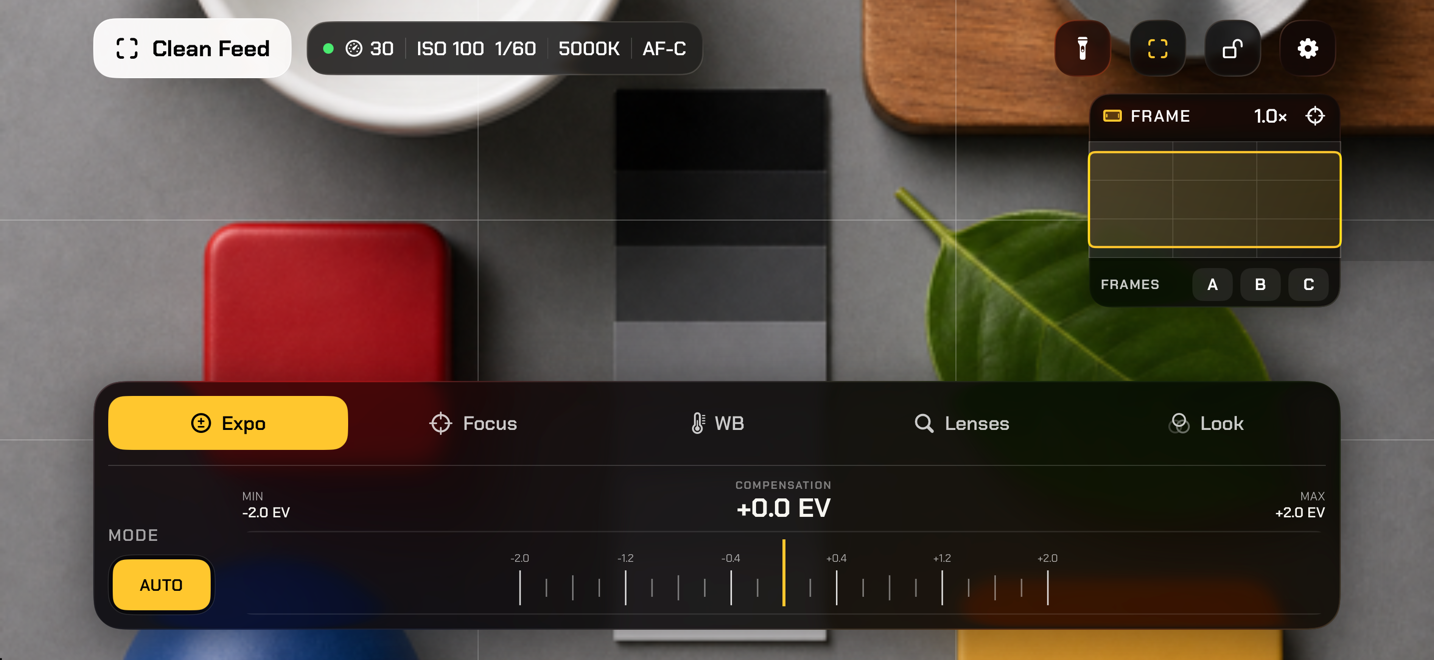
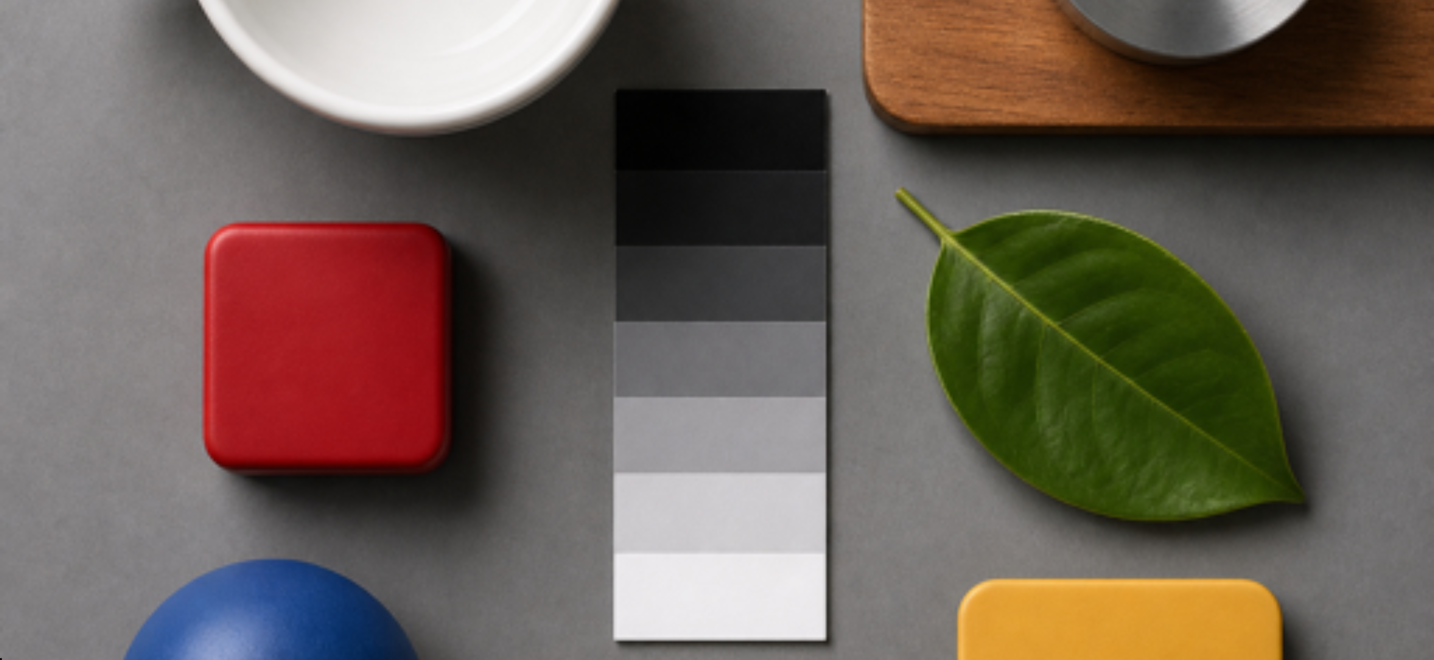
Mount the iPhone, adjust the image, and hide the interface before capturing its display on your Mac.
Secure the iPhone above the subject. Choose its available ultra-wide, wide or telephoto camera and confirm the rig with the level and guides.
Tap focus, meter exposure, lock ISO and shutter, set white balance, position digital framing, and save the complete setup as a named Shot.
Choose the intended output, position its crop with the framing map, then tap Clean Feed. The interface, guides, scopes and system overlays disappear as the selected frame fills the output. A two-finger tap brings them back.
Available values depend on the selected lens and capture format. Change lenses to see the frame rates, shutter range, focus modes and zoom range available for each camera.
Continuous or locked focus with manual lens position. Auto exposure shows compensation; Auto off gives fixed ISO and shutter. White balance supports Auto, Lock, or direct temperature and tint.
The complete native camera image stays visible during setup. Preview and position a 16:9, 4:3 or 1:1 crop with the orientation-aware map, or choose Screen to fill the iPhone display straight away.
Focus peaking, zebras, false color, luma histogram, waveform and framing guides. The equal-height toolbar keeps its dark glass background; a yellow symbol shows when an assist or guide is active.
Named Shots remember lens, FPS, zoom, crop, focus, exposure, white balance, torch, guides and color. Private iCloud sync keeps setups and imported LUTs with you.
Swipe to compare them, adjust the intensity, or import standard 3D .cube files from Files.
One-time App Store purchase for iPhone. No subscription, account, advertising or in-app purchase.
Ask for the launch link Requires iOS 18 or later. Available controls vary by iPhone model and selected physical lens.No. Overhead displays and controls the live iPhone camera preview. Your Mac screen-capture software determines whether, how and in which codec that display is recorded.
Connect it with a USB data cable, unlock it, trust the Mac if prompted, and choose the iPhone display in software such as Ecamm Live or another compatible capture workflow.
Yes, when the active lens and capture format support it. Try another physical lens if 60 FPS is unavailable.
Yes. A selected look is part of the intended picture. Monitoring overlays such as focus peaking, zebras, false color, histogram and waveform are setup aids and disappear.
No. USB screen capture mirrors the physical display, including its hardware cutout. Native and the fixed-aspect outputs preserve their selected shape; Screen fills the display and may place picture behind the cutout.
Named Shots, A/B/C framing bookmarks, imported LUT files and app settings. They use your private Apple iCloud account. Coyotiv does not operate an Overhead server and cannot access the live camera or your synced library.
Overhead requires an iPhone running iOS 18 or later. Physical cameras, minimum focus distance, manual controls, frame rates, torch support and maximum zoom depend on the device.